I may earn a commission at no extra cost to you. #ad
How to Play High-Quality Simulation Games on Low-End PCs
Jump to Section
Understanding Simulation Game Bottlenecks
Simulation games are unique in the gaming world. Unlike fast-paced shooters that rely heavily on GPU (Graphics Processing Unit) speed for frame rates, simulators like The Sims, Cities: Skylines, or specialized lifestyle simulators often lean heavily on the CPU (Central Processing Unit) and RAM. This is because the computer has to constantly calculate the logic, AI, and physics for every object in the simulated world.
If you are using a low-end PC or a laptop without a dedicated graphics card, your main enemies are thermal throttling and memory saturation. When your RAM fills up, the computer starts using your much slower hard drive as temporary memory (paging), which causes the stuttering or "hitch" you feel while playing. Identifying whether your CPU or GPU is the bottleneck is the first step toward a smoother experience.
Optimizing In-Game Settings for Maximum FPS
The most immediate way to gain performance is through the game's internal settings menu. Most players go straight for "Low Presets," but you can often keep the game looking decent by being selective. First, lower the resolution. Dropping from 1080p to 720p reduces the number of pixels your PC needs to render by nearly 50%.
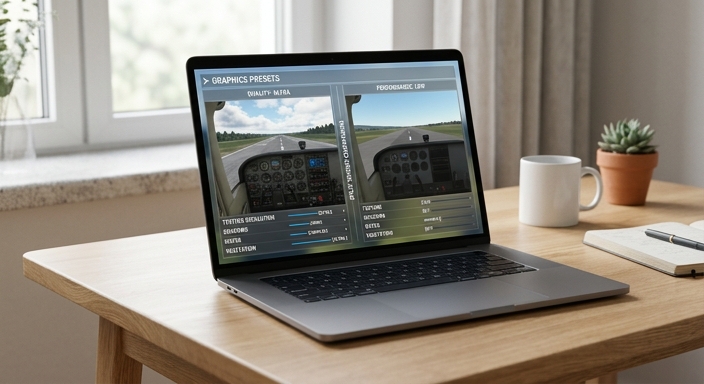
Second, focus on shadows and reflections. In simulation games, dynamic shadows are incredibly taxing on low-end hardware. Turning shadows to "Static" or "Off" can provide a massive boost. Additionally, look for "Simulated Population" or "Crowd Density" settings. Lowering these will reduce the strain on your CPU, as the game has fewer AI entities to track simultaneously.
Windows OS Tweaks for Gamers
Your operating system is often running dozens of processes you don't need while gaming. To free up resources for your simulation, start by enabling "Game Mode" in Windows settings. This tells Windows to prioritize your game’s process and pause background updates.
Another critical step is adjusting your Power Plan. By default, many laptops are set to "Balanced" or "Power Saver," which limits CPU clock speeds to save battery. Change this to "High Performance" while plugged in to ensure your processor is running at its maximum potential. Also, ensure you have disabled "Startup Apps" in the Task Manager to prevent programs like Spotify, Discord, or Steam from eating up precious RAM in the background before you even launch your game.
Essential Software and Tools
Sometimes, the game itself doesn't offer the tools you need to run it smoothly. This is where third-party software comes in. If you are struggling with a game that doesn't support modern upscaling, look into "Lossless Scaling" (available on Steam). It allows you to use Spatial Upscaling (like FSR) on any game, effectively letting you run the game at a tiny resolution while scaling it up to fit your screen without the usual blurriness.
For players on extremely old hardware, tools like "Razer Cortex" or "Process Lasso" can help manage how Windows allocates CPU cores to your game. These tools ensure that your simulation gets the "lion's share" of your processor's attention, preventing other background tasks from causing micro-stutters during gameplay.
Physical Maintenance and Thermal Management
Performance isn't just about software; it's about heat. When a PC or laptop gets too hot, it automatically slows down (throttles) to prevent permanent damage. If you haven't cleaned your PC in a year, dust buildup in the fans could be costing you 10-20% of your performance.
For laptop users, simply lifting the back of the laptop off the desk by an inch using a book or a dedicated cooling pad can drop temperatures significantly. If you are comfortable with hardware, adding a second stick of RAM to enable "Dual Channel" mode can double your memory bandwidth, which is a massive help for games that use integrated graphics (APUs).
Frequently Asked Questions
Can I play modern simulation games without a dedicated GPU?
Yes, many modern simulators can run on integrated graphics (like Intel UHD or AMD Radeon Graphics) if you lower the resolution to 720p and use performance-enhancing software like Lossless Scaling or FSR.
Does adding more RAM help simulation games?
Absolutely. Simulation games often track thousands of individual entities. Increasing RAM from 8GB to 16GB is one of the most effective hardware upgrades for low-end PC users.
What is the best resolution for low-end gaming?
If 1080p is lagging, try 1280x720 (720p). It significantly reduces the load on your GPU while maintaining a standard 16:9 aspect ratio.